Convolution reverb

The ARIA Player includes a convolution engine for high-quality sampled reverb. Just as a Garritan sample libraryA piece of software consisting of a collection of recorded instrument sounds. Sample libraries can be used to play back existing MIDI sequences or to act as a live virtual instrument. contains sounds of actual musical instruments, the Convolution reverb was created by sampling the reverberationThe audio phenomenon that occurs when a sound is reflected and absorbed by surfaces in a physical space. Reverberation effects are used to add depth and realism to audio recordings. Commonly abbreviated as reverb. in an actual acoustic space, such as a concert hall or cathedral. Convolution reverb uses impulse responses, which are the recorded reverberations of a space when an impulse sound is played within that space. The impulse responses are used to accurately reproduce the character of the space, including the imperfections and nuances that give the space its unique identity.
When you're using convolution reverb, you're effectively placing your instruments in the sampled space. Lifelike reverb is an important part of any project, as it provides continuity of perception and authenticity to the listener. The ARIA Player includes ten impulse responses (in ARIAP format); certain Garritan sample libraries include additional responses.
For individual instrument patchesA particular instrument sound, often containing multiple samples. The term is borrowed from physical synthesizers in which cables were used to connect sound modules. Also referred to as program. and most ensemble presets, Convolution reverb is turned off by default; to activate it, you must click the on/off switch ( /
/ ) located in the Effects view. It may not be necessary to use Convolution reverb when using Ambience or vice versa. Additionally, there are some situations where you may want to use both Ambience and Convolution reverb to exaggerate a certain space or element. For more on Convolution reverb, refer to the ARIA Player User Manual.
 To turn Convolution reverb on or off (bypass reverb)
Turn reverb on or off so that you can easily hear loaded instruments with either no reverb or with the current reverb settings.
- Click the Effects button. The Effects view appears.
- Under Convolution, click the power button to turn reverb on or off .
This button works exactly like the bypass option commonly available to audio plug-ins.
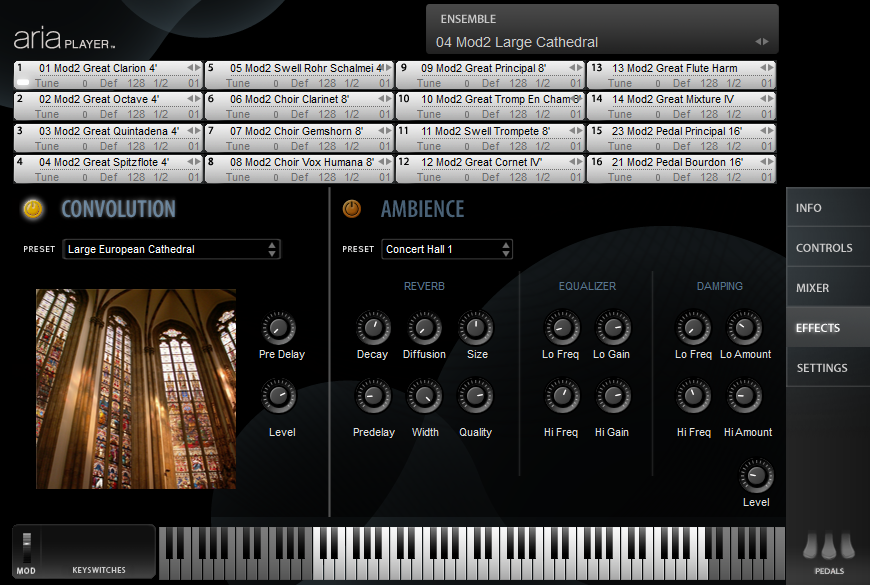 To add Convolution reverb to one or more instruments
- Click the Effects button. The Effects view appears.
- Turn Convolution reverb on .
- Click the Preset menu and choose an impulse response from the popup menu that appears. The impulse response is loaded and a picture representing the space appears.
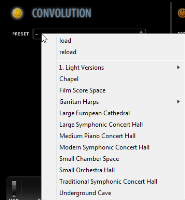
You can also choose to load an external impulse response by clicking load aria preset and navigating to the location of the ARIAP file.
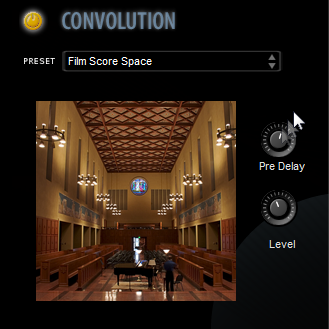
- Adjust the Predelay and Level knobs until you achieve the desired reverb sound.

- The Predelay knob controls the amount of time between the impulse and the first of the reverb reflections, defining the perception of the size of the space.
- The Level knob operates like a return level, determining the volume of the reverb.
- Click the Mixer button. The Mixer view appears.

- Adjust the Send knob for each instrument to which you want to apply Convolution reverb.

This knob functions as your wet/dry control, determining how much of the instrument signal to send to the reverb.



Leave feedback on this topic
Garritan Personal Orchestra 5 User Manual
Copyright and trademarks

